

Why it Matters
Templates allow you to create professional, well-structured content faster by providing pre-designed layouts and flows. Instead of starting from scratch, you can customize proven patterns that follow best practices for user engagement and onboarding.Best Practices
- Start with a template to save time and follow proven patterns
- Customize branding to match your application’s look and feel
- Test variations to see which template styles resonate with your users
- Create custom templates from your highest-performing content for future reuse
Creating a Template
GuideWhale ships with some pre-built templates to get you started, but you should create your own templates to match your application’s look and feel.- You can save a new template by opening a guide step or widget (banner, modal, hint, embed) editor and selecting the
Save as templateoption from the top right context menu.
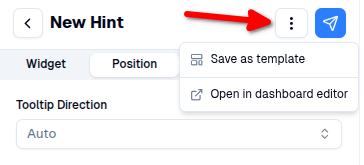
- Then you can configure your template before saving it.
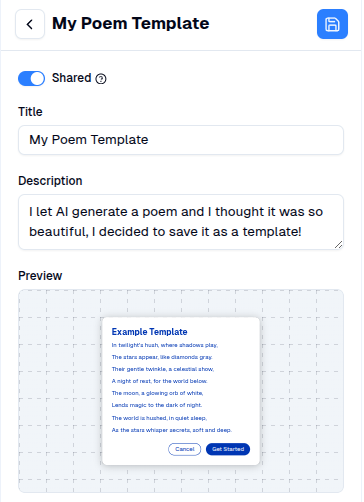
- Shared: enable if you want to share this template with your team members. If disabled, the template is private to you.
- Title: used to easily lookup and search for your template.
- Description: optional description to help your team understand what the template is supposed to be used for.
- Preview: How saved template will look like in the editor.