

Why it Matters
Our Chrome extension allows you to edit all types of content (guides, banners, modals, etc.) directly within your web application. You can also use it to visually tag pages and features for segmentation, milestones, analytics and content targeting.Content Editor
Start editing your content directly inside your application.
Content Templates
Use a set of predefined templates to get started or create and save your custom ones.
Event Triggers
Configure what events need to be captured for a trigger to be executed.
Target Element Selection
Configure how target elements are selected and validated.
Getting Started
To get started with our extension, first download it from the Chrome Web Store.- After downloading, pin it to your browser toolbar for easy access.
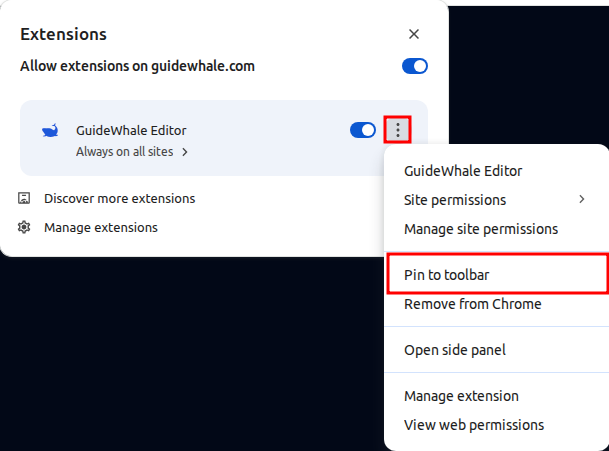
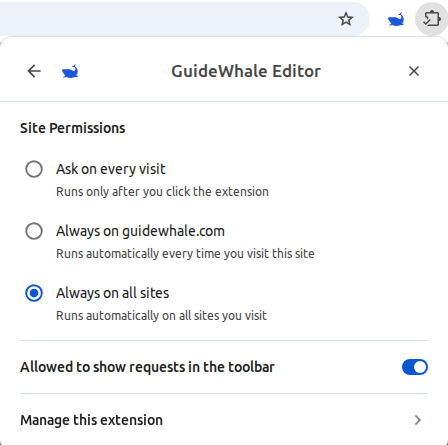
- Make sure to allow extension on every site you want to use it on.
If the browser extension doesn’t automatically detect your login, try closing the side-panel and re-opening it.
Guide & Guide Steps Editor
To get help with all guide and guide step editor settings, visit the Guides Overview section.Guide Editor
Edit general guide settings, select your theme and get an overview of all guide steps.Guide Step Editor
Edit individual guide steps, their content, appearance and additional triggers.Checklist Editor
For checklists, we primarily use our extension editor to preview how checklists are displayed to your users directly inside the application.At the moment, checklist tasks can only be edited through our dashboard editor.
- Settings: General settings, including launcher content and appearance.
- Target Pages: allow you to easily identify if your checklist is showing on correct application pages.
- Start Condition: can be used to visually tag any interactions user has to perform before checklist is shown.
- Position: configure where on the page the checklist should be shown. This is typically either on the left or right side of the bottom of the page. If Resource Center is configured to show checklist inside it, this option is not used.
- Content: configure style of your checklist. These settings should generally be kept the same as your global theme, but you can always adjust checklist’s width to match its content better.